A surprising number of Saudi eVisa applications stall not because of paperwork or eligibility, but because of the photo. The upload field on the official portal is strict about pixel dimensions and file size in a way that catches people off guard, especially anyone used to the larger, more forgiving Saudi eVisa photo requirements of other visa systems. This guide sets out the exact specifications from the official eVisa portal, shows what a compliant crop looks like next to the most common rejection reasons, and answers the photo questions travelers ask most. If you haven't started your application yet, our overview of Saudi eVisa requirements covers everything else you'll need alongside the photo, and our guide to which Saudi visa you need is worth a look first if you're not yet sure the eVisa is the right category for your trip.
Why the Photo Specification Is So Strict
The eVisa photo isn't decorative. It's the image that gets matched against your face at the border and stored alongside your application, so the portal enforces a narrow, consistent format rather than accepting whatever photo happens to be on your phone. A tightly defined pixel size and file-size ceiling also keeps the application system fast and predictable, since every uploaded photo takes up roughly the same amount of space regardless of which device or camera produced it.
That consistency is exactly what trips people up. A modern phone camera produces images many times larger, in both dimensions and file size, than what the portal will accept, so almost nobody can upload a photo straight out of their camera roll. Understanding the numbers below, and why they exist, makes it far easier to get a compliant photo on the first try instead of cycling through rejected uploads.
Official Photo Specifications
These figures come directly from the eVisa portal's own photo specification page. Treat this table as the reference to check your photo against before you upload it.
| Requirement | Specification |
|---|
| Pixel dimensions | 200 × 200 pixels (a perfect square) |
| File size | 5 KB to 100 KB |
| File format | Not stated explicitly by the portal; JPG/JPEG is the safest choice, with the upload screen itself as the final word on what it accepts |
| Face size in frame | 70% to 80% of the frame, chin to crown (about 1.4" × 1.6" within the square) |
| Background | Plain white, no pattern, no shadows, one person only |
| Head position | Square to the camera, face and eyes straight ahead, both ears and cheeks visible |
| Head covering | Not permitted, except for religious reasons; face must stay visible from chin to forehead |
| Recency | No more than 6 months old |
If your photo fails any one of these checks, the portal will typically reject the upload with an error rather than silently accepting a non-compliant image, so it's worth checking each line of this table individually rather than eyeballing the photo as a whole.
What a Compliant Photo Looks Like
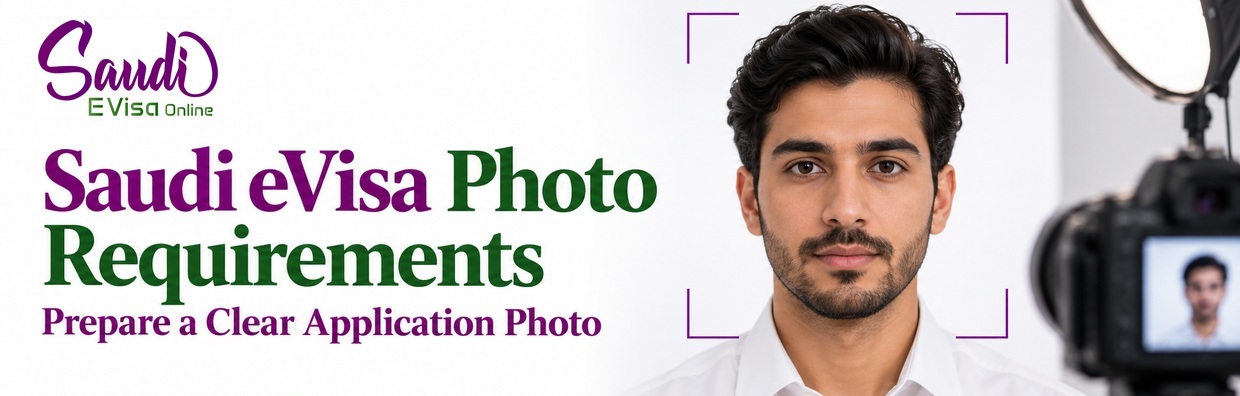
The diagram above shows the shape a correct submission takes: a centered, forward-facing head and shoulders filling most of the square frame, set against a flat white background with no shadows. Nothing in the frame besides the applicant should be visible, and the crop should leave a small, even margin above the head and around the shoulders rather than cropping tightly against the hairline or cutting into the shoulders at an odd angle.
It's a genuinely small, low-resolution image by modern standards, which is precisely why framing and lighting matter more than camera quality. A well-lit, correctly cropped photo from an ordinary phone will pass; a high-resolution studio portrait with a shadowed backdrop or a tilted head will not, no matter how good the camera behind it was.
Common Rejection Reasons
Most rejected photos fail for one of a small number of recurring reasons. Recognizing these before you upload saves a round of frustrating error messages.
Face too small in the frame. This happens when the original photo was taken from too far away and then simply resized down to 200 by 200 pixels without re-cropping. The face ends up well under the required 70 to 80 percent of the frame. The fix is to crop in tighter on the head and shoulders before you resize, not to zoom in with the camera at the time of shooting, which usually distorts the shot instead.
Shadowed or non-white background. A cream wall, a patterned curtain, or a plain white wall lit unevenly so that a shadow falls behind the head will all cause a rejection. The background needs to read as flat, even white with nothing behind the subject but that white surface. Standing a couple of feet in front of the wall, rather than against it, and lighting the wall separately from the face, usually removes the shadow that a flash pressed close to a wall tends to create.
Head tilted or turned. The specification calls for a straightforward, portrait-style pose: head square to the camera, eyes looking directly into the lens, both ears and cheeks visible. A head turned even slightly to one side, tilted down, or angled toward a light source can fail this check, even when every other part of the photo is otherwise compliant.
Beyond these three, the other frequent culprits are a file that's still several hundred KB because it wasn't re-compressed after resizing, an image that's rectangular rather than a true 200 by 200 square, glare on glasses lenses, and a photo that's older than six months and no longer matches the applicant's current appearance. A bad photo rarely travels alone; if you're troubleshooting an upload, it's worth checking our roundup of common Saudi eVisa application mistakes in case another part of the form needs a second look too.
How to Take a Compliant Photo at Home
You don't need professional equipment to produce a photo that passes on the first try. A phone camera, a plain white wall, and a few minutes of care with lighting and cropping are enough for most people.
- Find a plain white wall or backdrop. A blank interior wall works well. Avoid doors, curtains, or anything textured or patterned behind you.
- Stand a couple of feet away from the wall. This gap stops your own shadow from falling on the background when the photo is taken, which is one of the most common causes of rejection.
- Use natural, even light facing you. Daylight from a window in front of you, rather than behind or to one side, lights the face evenly and avoids the harsh shadows that a direct flash can create.
- Remove glasses, hats, and headphones. Keep any religious head covering on if you normally wear one, but make sure your face is clearly visible from chin to forehead with no shadow across it.
- Face the camera directly. Keep your head level and square to the lens, look straight into the camera with a neutral expression, and keep both eyes open.
- Take several shots. Small differences in expression and head angle add up, so take five or six photos and pick the sharpest, most evenly lit, most front-facing one.
- Crop to a square. Using your phone's photo editor or a free online cropping tool, crop the image to a 1:1 square so your face fills roughly 70 to 80 percent of the frame from chin to crown.
- Resize to 200 by 200 pixels and compress. Resize the cropped square down to exactly 200 by 200 pixels, then save or export it as a JPEG and check the resulting file size. If it's above 100 KB, lower the JPEG quality setting slightly and re-export; if it's below 5 KB, the image is likely too heavily compressed and worth re-exporting at a slightly higher quality instead.
Most phone photo apps and free online passport-photo tools can handle the cropping, resizing, and compression steps in a couple of taps, which is often faster than doing it manually in a general-purpose image editor.
What Happens If Your Photo Is Rejected
If the portal rejects your upload, it will usually display a short error message pointing at the specific rule your file failed, such as an incorrect pixel size or a file that falls outside the 5 to 100 KB range. Read that message carefully before you try again, since it tells you exactly which part of the photo to fix rather than leaving you to guess. A rejection at this stage is a technical check on the file itself, not a judgment on the application as a whole, so there's no penalty for re-uploading a corrected photo as many times as it takes to get it right.
If the error message is vague or the upload simply fails without explanation, it's worth working back through the table above line by line: confirm the pixel dimensions are exactly 200 by 200, check the file size sits inside the 5 to 100 KB window, and look again at the background and head position. In most cases the culprit turns out to be file size rather than anything about the photo's content, since a JPEG exported at high quality from a phone can easily land well above 100 KB even after it's been resized to the correct pixel dimensions. If your whole application was refused rather than just the photo upload, our guide to a rejected Saudi eVisa walks through the other reasons that can happen and what to do next. Because corrections take time, it also helps to know your expected eVisa processing time before you leave photo troubleshooting until the last minute.
Photo Requirements for Children and Infants
The same specification applies to eVisa photos for children and infants as for adult applicants: a 200 by 200 pixel square, a 5 to 100 KB file size, a plain white background, and a face that fills 70 to 80 percent of the frame. In practice, getting a compliant photo of a baby or toddler takes more patience than the technical requirements themselves, since the photo still needs a neutral expression, open eyes, and a face square to the camera.
A few adjustments make this easier. Lay a plain white sheet or blanket flat on the floor and photograph the child from directly above, rather than trying to prop them upright against a wall backdrop, which is difficult for very young children to hold still for. Take several shots in quick succession to catch a moment with open eyes and a neutral expression, and avoid anyone else's hands, toys, or props appearing in the frame, since the specification calls for the applicant alone in the photo. For everything else that differs when you're applying on behalf of a child, our guide to the Saudi eVisa for children and families covers the rest of the paperwork.


 Share
Share






Pooja is a travel and visa content writer specializing in visa requirements, travel procedures, and immigration information for international destinations. She researches visa rules, documentation, application processes, entry requirements, and travel updates to create clear, practical guides that help travelers understand the visa process and plan their journeys with confidence.